Product update
Tasks in Aeglio: a clearer view of your team’s work
Tasks, dates, checklists, discussions and recorded time in one place. Discover the possibilities for organising and following your team’s work.
 View full screen
A client job rarely consists of just one thing. A website needs content, design and testing. A maintenance visit includes preparation, repairs and a handover. A monthly accounting service involves documents, checks and answers to open questions.
Tasks in Aeglio bring those parts of the work together: what needs doing, who is responsible, when it is due and how far it has progressed. Descriptions, checklists, files, discussions and recorded time stay connected to the task.
Here is a look at the possibilities, using a small website project as an example. The same features can support many kinds of service work. All names and data in the screenshots are fictional.
Tasks with a clear outcome and a responsible person
A project can contain tasks for its different pieces of work. In a website refresh, those might include preparing content, checking the menu copy and reviewing the homepage design.
Each task can have a description, assignee, priority, status, planned start and due date. For example, a homepage review could look like this:
- Task: Review the homepage design.
- Responsible: Marta, who collects feedback and makes the changes.
- Due: 10 November.
- Description: Check the main photo, headline and mobile layout before the client review.
The assignee makes responsibility visible. Priorities distinguish urgent work from tasks that can wait, while labels can group related work such as content, design or site visits within the same project.
Task types add another visual distinction: an ordinary task, bug, story, improvement or research. For example, a booking-form error can appear as an urgent bug alongside a lower-priority research task and a planned improvement.
Checklists and subtasks for different levels of detail
A task can include a checklist of smaller steps. For the homepage review, that might mean checking the photo, confirming the headline and testing the mobile layout. Completed steps show how much of the checklist is done.
Subtasks offer another level of detail. Each subtask can have its own assignee, dates, status and discussion. For example, building the booking form could be a separate subtask within a larger website delivery task.
This makes room for both a short list of things to remember and work that needs its own progress and responsibility.
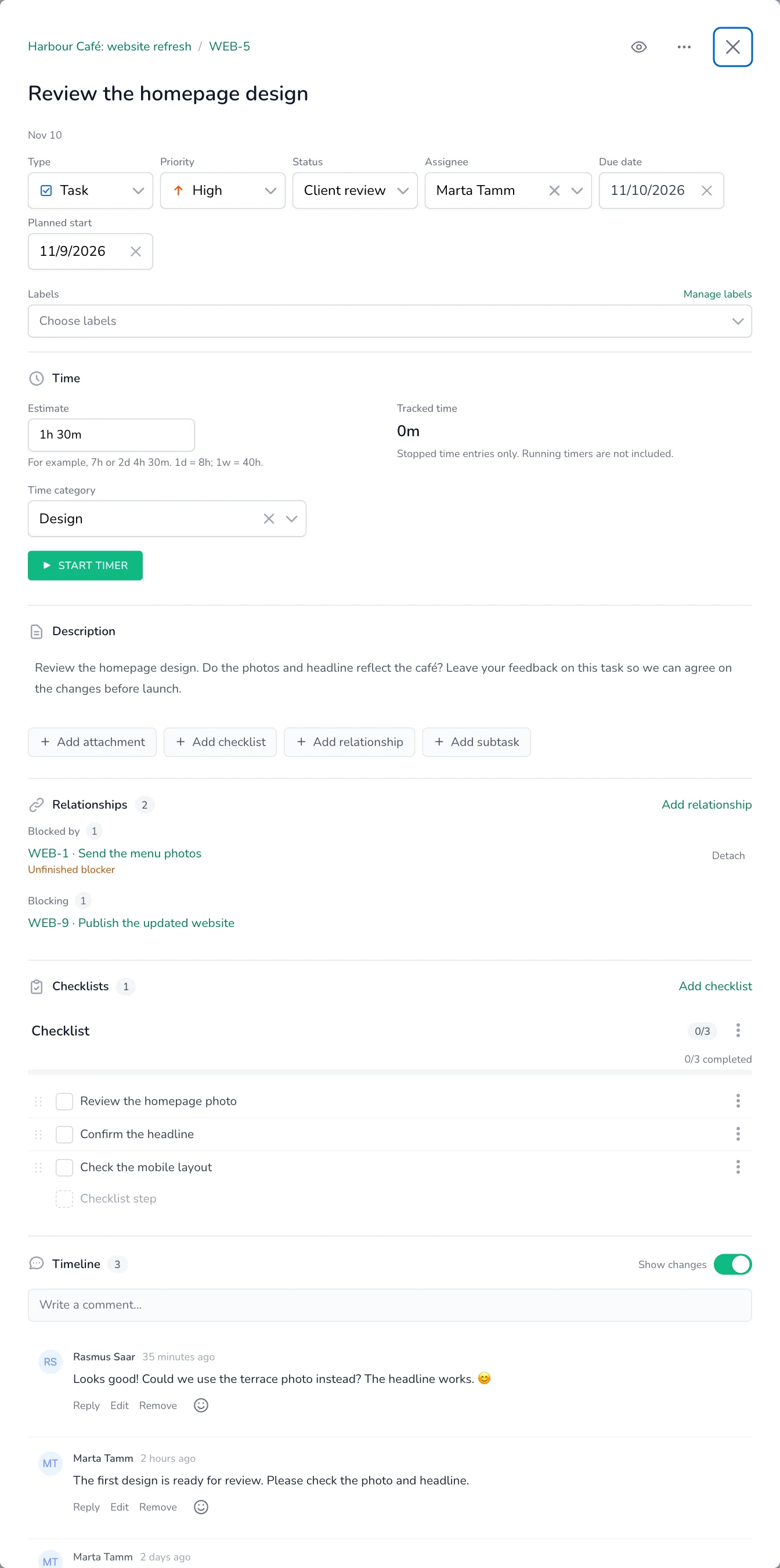
The brief, smaller steps and discussion are available together in the task panel.
The same tasks in several views
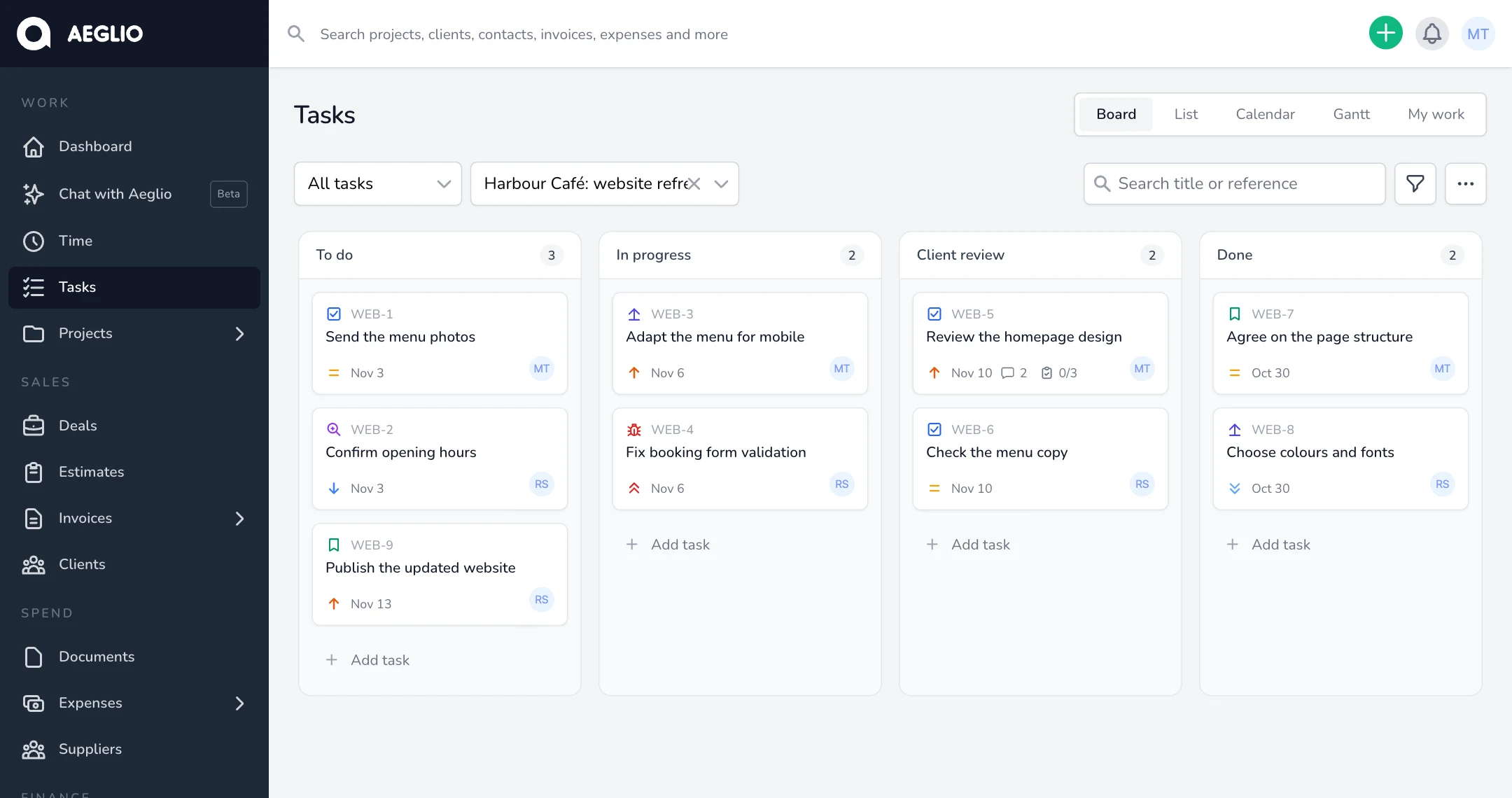
Aeglio's task views offer different perspectives on the same work. A status change or date edit is reflected across the views, without separate copies to maintain.
| View | What it shows |
|---|---|
| Board | Progress by status, with tasks moving through stages such as To do, In progress, Client review and Done. |
| List | Task details in a list that can be filtered and organised. |
| Calendar | Tasks in their date context, making nearby deadlines visible together. |
| Gantt | Work across a timeline, including task dependencies. |
| My work | Tasks assigned to the person using the view. |
The board can provide an overview for a team check-in, while My work gives an individual view of assigned tasks. Search and filters help narrow the work to a project, status, person or label.
Task statuses are also adaptable. “Client review” is one example of a stage a team can include in its workflow.
Dates and dependencies on a timeline
A planned start records when work is expected to begin. A due date records when it should be finished. Together, they describe the intended span of a task.
Gantt shows those dates on a timeline. Week, month, quarter and year scales cover both near-term work and longer delivery plans. Exact dates remain editable in the task panel, including when viewing a whole year.
Dependencies describe work that needs to happen first. For example, collecting menu photos can come before reviewing the page design. The relationship makes the order visible and helps explain why a task is waiting. It does not automatically reschedule the project; task dates remain under the team's control.
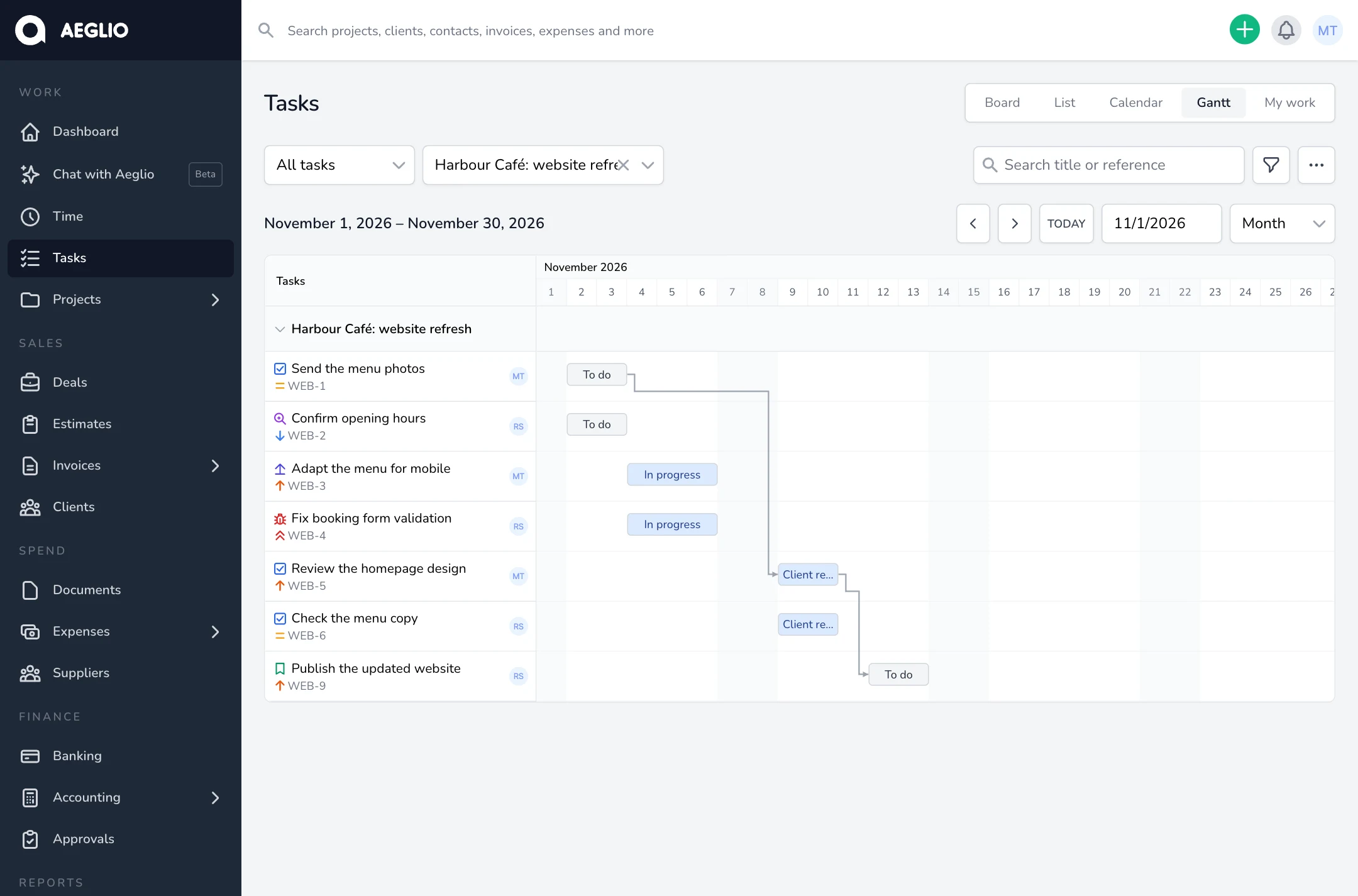
The timeline brings planned dates and the order of work into the same view.
Questions, files and decisions in the same place
Tasks also hold the context around the work. Comments support questions and decisions, attachments keep relevant documents and photos nearby, and mentions draw a person's attention to a discussion. Following a task makes it possible to stay informed about its updates.
“Could we use the terrace photo instead?” is easier to understand on the homepage review task, beside its description, checklist and earlier discussion.
The same applies to internal collaboration: a technician's site note, a consultant's decision or a designer's explanation of a change can remain with the work it concerns.
Time estimates and work that repeats
Team members can record time against tasks, keeping the hours connected to the work performed. An effort estimate provides a point of comparison with recorded time and can help explain which jobs take longer than expected.
There are several options for similar or repeating work. Duplicate provides a starting point for another task, while a follow-up links the next piece of work to the original. Templates can hold a prepared task or set of tasks, and recurring schedules support work that returns regularly.
For example, a monthly service can have the same preparation, review and delivery steps, while each month's tasks retain their own progress and discussion.
Clients and partners can take part too
When collaboration extends beyond the team, a project can be shared through Guest access, available in the three-dot menu after selecting a project in Tasks.
Viewers can read, Commenters can give feedback and add attachments, and Contributors can help create and organise tasks. Guests do not use paid team seats. Time tracking remains a team-member workflow.
Sharing covers all existing and future tasks, comments and task attachments in that project. Internal-only work can remain in a separate project. An invitation does not open other projects, invoices, expenses or time records, and guest access can be changed or revoked.
Possibilities across service teams
| Type of work | Example |
|---|---|
| Design and marketing | A campaign with drafts, review tasks and publishing checks. |
| Consulting and IT | Assigned actions from meetings, delivery work and open questions. |
| Construction and maintenance | Preparation, site work and handover, with photos and checks beside each job. |
| Accounting and recurring services | Document requests, checks and delivery tasks that repeat for each client. |
These features can be used together or separately. A small project might need only a board and assigned tasks; a longer delivery can also benefit from dates, dependencies and a timeline. The shared benefit is a clearer view of the work and its context, for both the people doing it and those following its progress.